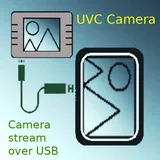
UVC Camera / Usb Camera custom APK
App for using a video camera over usb from userspace.
Descargar APK v2.2.4 · 5,2 MB- Versión2.2.4
- Tamaño5,2 MB
- RequiereAndroid 4.0.3
- Actualizada23/12/2023
- LicenciaLGPL-2.1-only
- PrecioGratis


Acerca de UVC Camera / Usb Camera custom
Descripción del desarrollador (en inglés).
Android-UVC-Camera
The app connects to a usb camera from your Android Device. (OTG cabel or OTG Hub needed)
This Project was built to perform an Isochronous Video Stream for all Android Devices (Above 4.1 Ice Cream Sandwich)(Mediathek Devices too) with UVC Cameras. The program uses your userspacr usb device driver to perform an isochronous transfer with your camera device.
Follow this way to set up your own userspace device driver:
First you have to set up all camera settings for your device. The program then saves the values and you can restore them later or overwrite them with other values. Use the "Edit/Save/Restore" Button to adjust the values. Use the automatic camera serarch to find and set up the camera. Explaination:
When the automatic search succeeds, you first set up the MAXIMAL PACKET SIZE. If your device is a mediathek device, you may have to lower the value for the max packet size. The Value PACKETS PER REQUEST defines the Number of the Packets sended to the device: One packet has a size of 3000 bytes and you use 16 packets at one time for sending. Here you define the amount of Bytes which were sent. Next thing are the USB REQUEST BLOCKS (activeUrb): These are in relation to the max packet size. You have to find here the right values for your device and control the output on the screen under the menupoint "Isoread". Some typically values for Qualcom Devices are: 8 for the activeUrbs and 16 Packets per Request.... The first thing of the method Isoread is a Controltransfer to the camera device:
If the controlltransfer is successful, than you are ready to go.
Next take a look at the frames.
When you receive identically and long frames, you can proceed to the method Isostream, where the frames were displayed on your screen.
To know how big be a Frame should be, you can look at the output of the controll transfer of the camera in the log: maxVideoFrameSize, This value is returned from the camera and should be the valid frame size (The value is calculated by Imagewidth x Imagehight x 2).
The IsochronousRead1 class shows you how the frames are structered by the camera. Different camerasetting == Different Frame structers. Try it out with different setting and look at the output. The eof hint shows the framesize in the log. For valid camera settings the size should be the same as maxFrameSize value of the controlltransfer.
Output method Isoread: (Controltransfer) Thirst the program will send a controlltransfer to your camera device. The output of it looks as following: Initial streaming parms: hint=0x0 format=1 frame=1 frameInterval=2000000 keyFrameRate=0 pFrameRate=0 compQuality=0 compWindowSize=0 delay=0 maxVideoFrameSize=0 maxPayloadTransferSize=0 Probed streaming parms: hint=0x0 format=1 frame=1 frameInterval=2000000 keyFrameRate=0 pFrameRate=0 compQuality=0 compWindowSize=0 delay=0 maxVideoFrameSize=614400 maxPayloadTransferSize=3000 Final streaming parms: hint=0x0 format=1 frame=1 frameInterval=2000000 keyFrameRate=0 pFrameRate=0 compQuality=0 compWindowSize=0 delay=0 maxVideoFrameSize=614400 maxPayloadTransferSize=3000 The first line are the values you set in the program, to connect the camera. (Initial streaming parms}
The secound line are the values from the camera, which the camera returned from your values.
And in the third line are the new saved and final values from the usb camera.
Outpuf from the first Method: isoRead:
EOF frameLen=10436. --> For Example here a frame ends with a length of 10436 wich is not 614400 as we expected from the controltransfer, so you may have to change some values of you program to get a valid frame size.
Información del archivo APK
| Nombre del paquete | humer.uvc_camera |
|---|---|
| Versión | 2.2.4 (código 124) |
| Android mínimo | Android 4.0.3 · diseñada para Android 13 |
| Arquitecturas | arm64-v8a, armeabi, armeabi-v7a, mips, mips64, x86, x86_64 |
| SHA-256 | bb470f4c52f0cb980f5edc6f66cb8f96e1e0d0710116ad6fec76076bbe4e3655 |
| Firma | 1b099c0f482fbd6cd80a83b45804a3cb2eb0e345bf24fee14e7c366d3bd220e5 |
| Licencia | LGPL-2.1-only — licencia libre copyleft: el código es público y las versiones modificadas deben seguir siendo libres |
| Código fuente | github.com/Peter-St/Android-UVC-Camera |
Permisos solicitados
- Escribir en el almacenamiento
- Leer el almacenamiento
- Cámara sensible
- Micrófono sensible
4 permiso(s) técnico(s) más
READ_MEDIA_* STORAGE USB_PERMISSION MODIFY_AUDIO_SETTINGS
Cómo instalar UVC Camera / Usb Camera custom APK
- Pulsa Descargar APK arriba y abre el archivo cuando termine la descarga.
- Si Android lo pide, permite que tu navegador instale apps desconocidas.
- Pulsa Instalar. UVC Camera / Usb Camera custom aparecerá junto a tus otras apps.
→ Cómo instalar un archivo APK en Android (paso a paso)
→ «La aplicación no está instalada»: causas y soluciones
Preguntas frecuentes
¿UVC Camera / Usb Camera custom es gratis?
Sí. UVC Camera / Usb Camera custom se distribuye con licencia LGPL-2.1-only: gratis, sin suscripción y con el código fuente público.
¿Es seguro este archivo APK?
El archivo es el que compila y publica el repositorio F-Droid a partir del código fuente público. Su huella SHA-256 aparece arriba para que puedas compararla tras la descarga. ¿Un APK es peligroso? Cómo verificar un archivo antes de instalarlo
¿Funciona UVC Camera / Usb Camera custom en mi teléfono?
Necesitas como mínimo Android 4.0.3. La app también funciona sin los servicios de Google, así que funciona en los teléfonos Huawei recientes.